You can learn more about the coin withdrawal process on the Bitkub application in this article.
To enhance security and minimize risks in digital asset transactions from unauthorized account access, Bitkub Exchange now uses face verification as part of our security system for coin withdrawals.
What is Face Verification?
Face verification is an additional layer of security for coin withdrawals that meet the specified conditions. This system verifies that the person performing the transaction is the account owner, ensuring your assets are protected by enhanced security standards.
Conditions for Face Verification
To balance transaction convenience with maximum security, the system will require face verification when a withdrawal meets any of the following conditions:
Per transaction: withdrawal value of 50,000 THB or more
Daily cumulative amount: total daily withdrawal value of 200,000 THB or more
Example: If you make multiple withdrawals under 50,000 THB per transaction, you will not be required to scan your face until your "daily cumulative amount" reaches 200,000 THB. The specific transaction that reaches 200,000 THB and all subsequent withdrawals on that same day will require face verification until it resets at midnight.
Remark: The daily cumulative amount resets every day at 12:00 AM
App Version and System Requirements
To ensure a smooth experience with the face verification system, please make sure your device meets the following minimum requirements:
Bitkub Application: Version 4.7.0 or higher
Operating System (OS):
iOS: Version 11.0 or higher
Android: Version 5.0 (Lollipop) or higher
Security Verification Steps
When a withdrawal transaction meets the conditions mentioned above, a security verification window, including face verification, will appear. You must complete the steps according to your enabled security settings as follows:
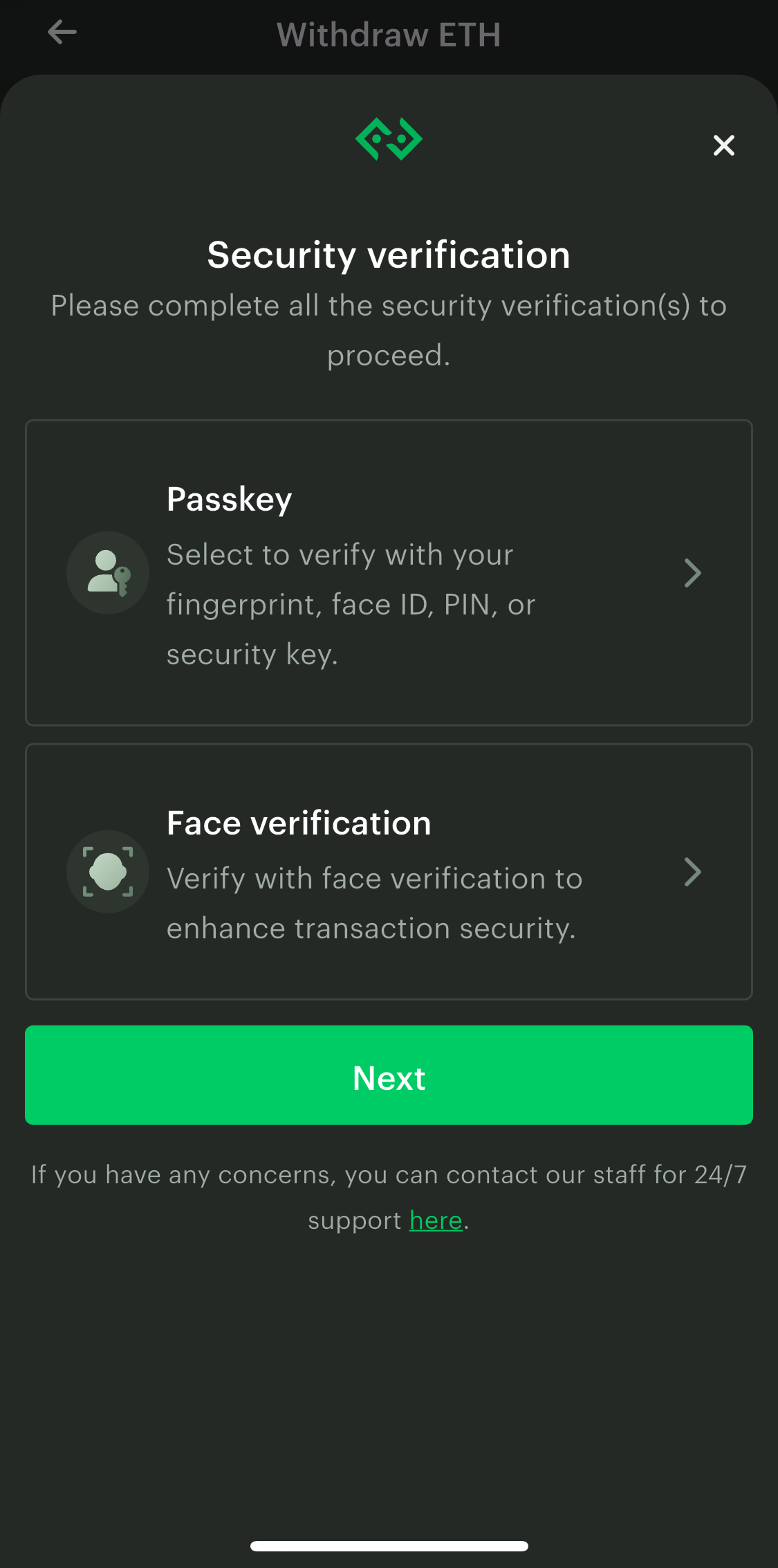
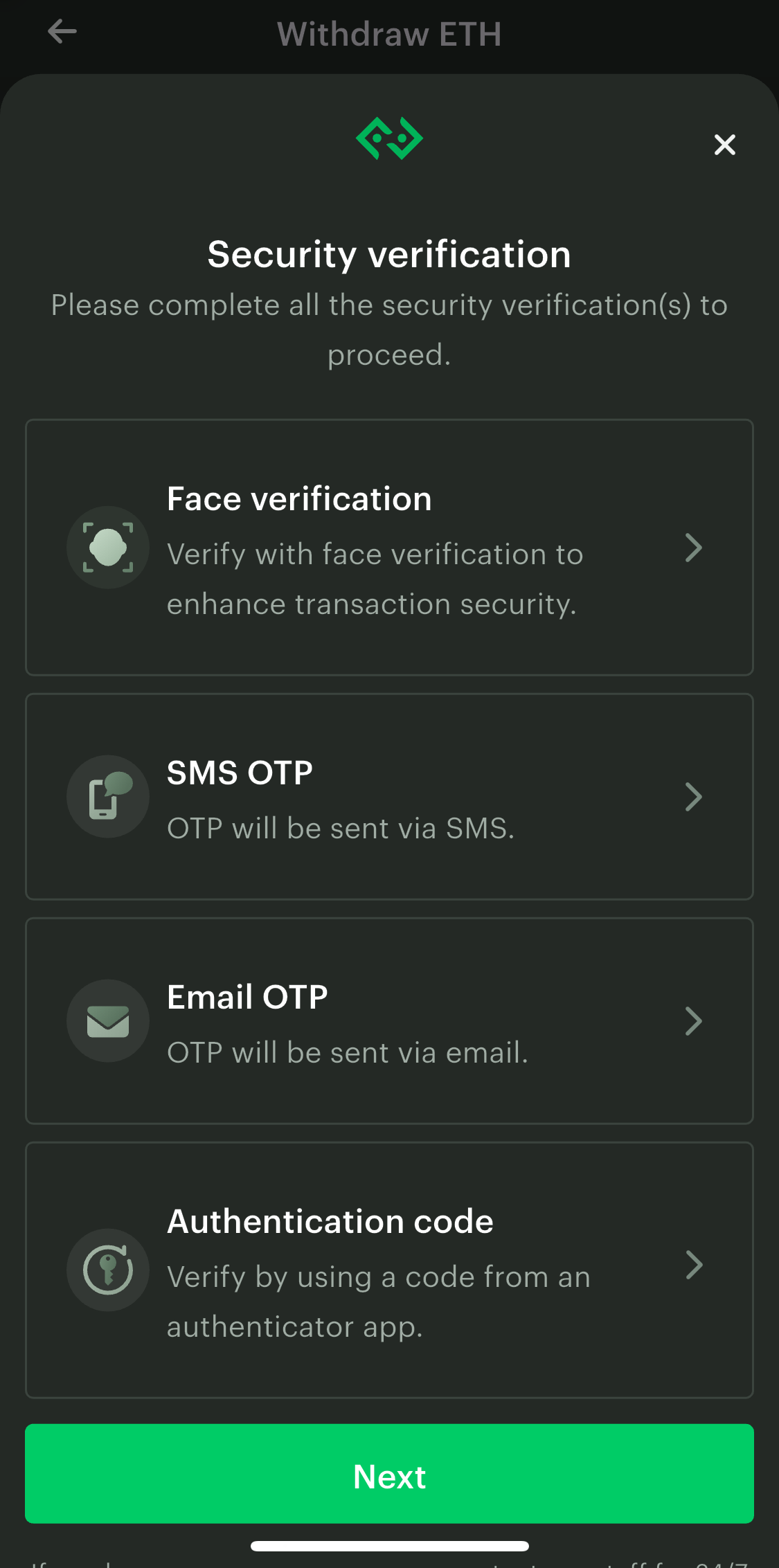
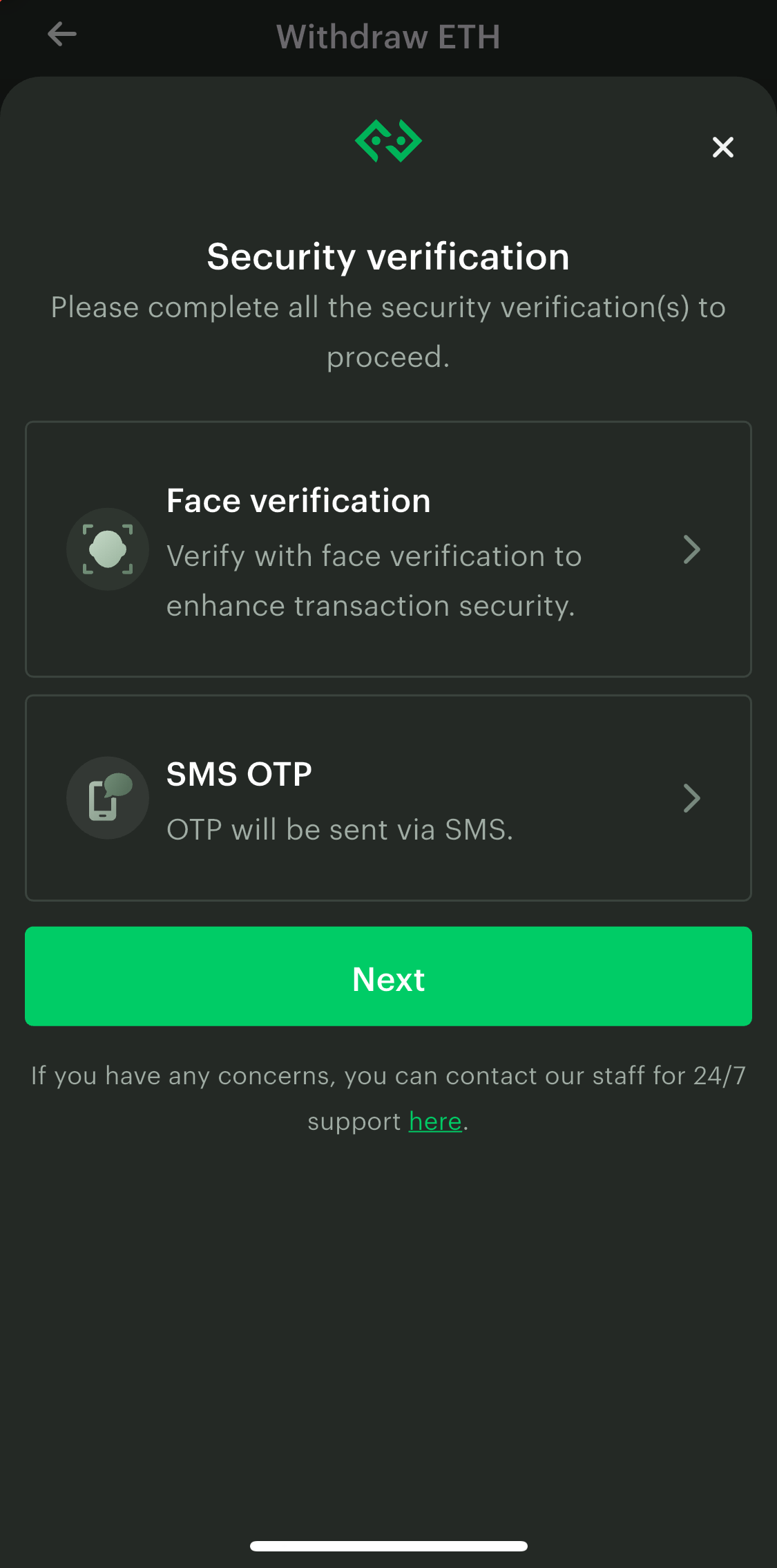
Examples of the security verification
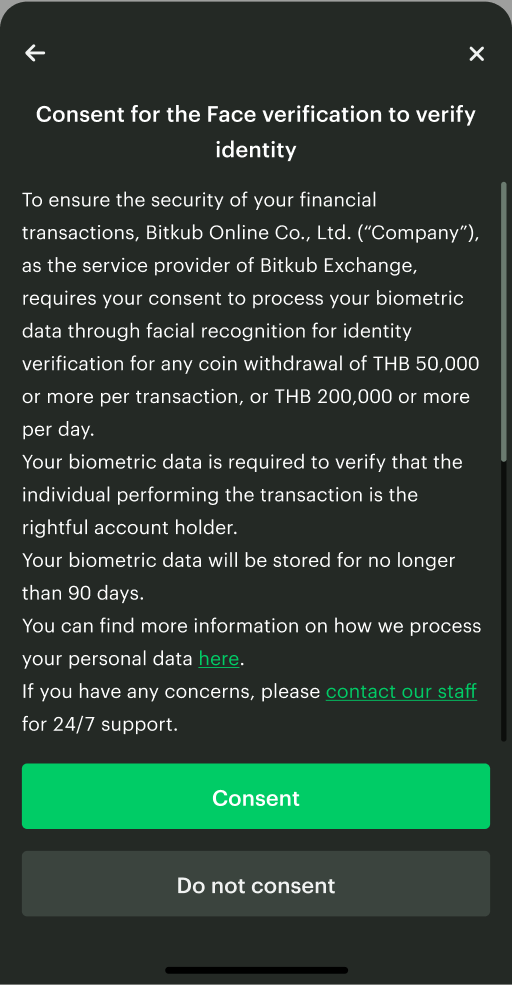
You will see a message asking for your permission to verify your face. Please tap "Consent" to continue. (If you do not grant consent, the system will be unable to process your withdrawal.)
Before scanning, the system will display instructions. Please read them carefully and tap "Start face verification".
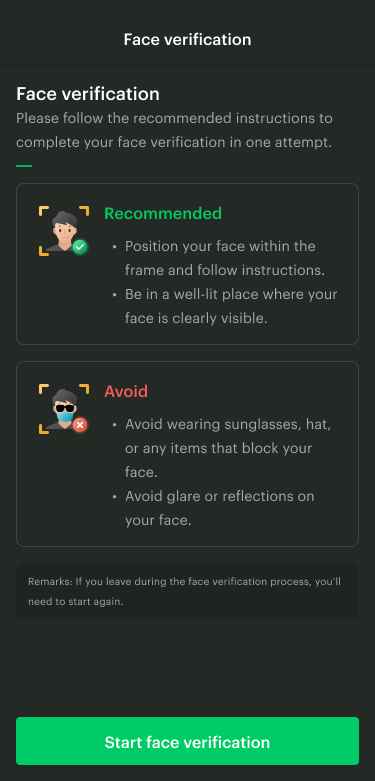
Please allow access to your device's camera to proceed.
Follow the on-screen instructions until the scan is successful. Please note the following conditions:
If the first scan is unsuccessful, you can retry up to two more times (a total of three attempts per transaction).
If all 3 attempts fail, please try creating a new withdrawal transaction and proceed with the security verification again.
Was this article helpful?
That’s Great!
Thank you for your feedback
Sorry! We couldn't be helpful
Thank you for your feedback
Feedback sent
We appreciate your effort and will try to fix the article